MAUI Billing Entries collects campus billing activity and creates charges, credits, and payments on University bills. Each entry represents a single charge, credit, or payment. Entries may be imported automatically through nightly processes, entered manually, or uploaded in bulk via a data file.
As entries move through the billing process, the system validates the data. Any errors must be corrected before the entries can proceed and post as bill transactions.
Billing Transaction Life Cycle
Each billing entry is associated with a feeder and charge type. The feeder identifies the source of an entry and the 5-digit charge type identifies the charge. Each feeder is configured to only accept a specific set of charge types. The Billing Office maintains and configures the list of feeders and charge types. Contact [email protected] with any feeder or charge type questions.
Data Import
Entries received through the nightly import are first stored in MAUI’s data import system, preserving the original feeder-system data. MAUI then attempts to create a Preliminary Transaction for each record, flagging any errors for review.
Manually entered records are validated immediately, and any errors must be corrected before the entry can be accepted.
Preliminary Transaction
After validation, an entry becomes a preliminary transaction. Preliminary transactions are not visible on the U-Bill but can be reviewed by authorized MAUI users and Billing administrators. Most feeders have a two-day review period, after which transactions are automatically approved. Some feeders require manual approval before posting.
Transaction
Once approved, a transaction updates the U-Bill balance and appears in MAUI, MyUI, and Self-Service. Accounting entries are created, and the transaction cannot be edited. Errors must be corrected by submitting an offsetting entry.
Preliminary Transaction Creation
On the Billing tab, go to Billing Entries
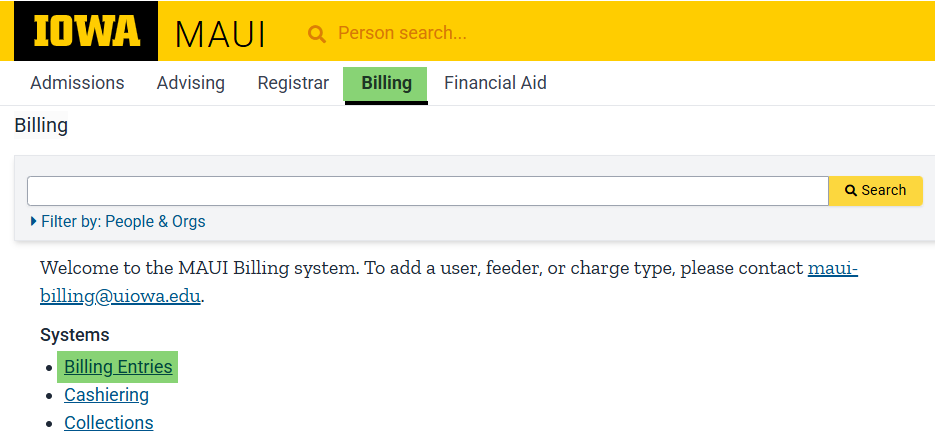
Select "Create a Preliminary Transaction"
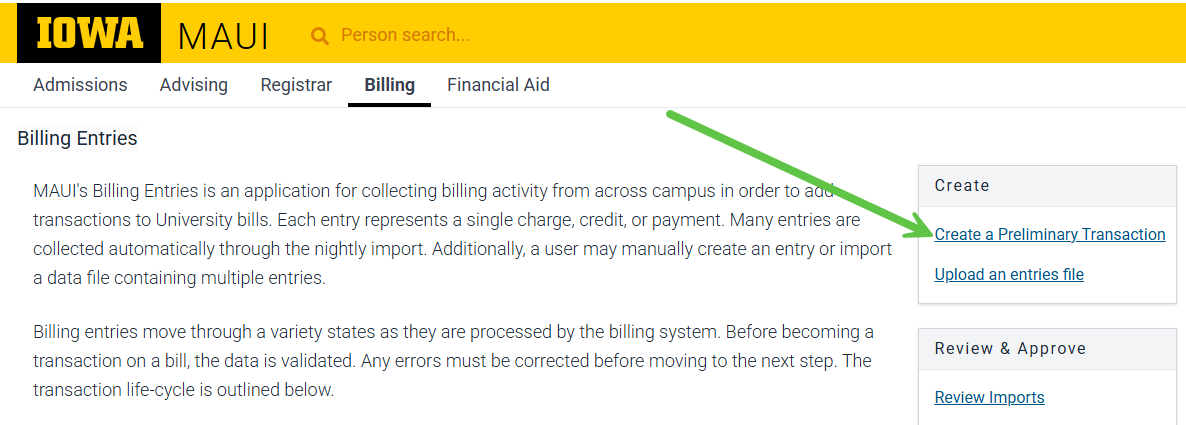
Enter the ID, Amount, Charge Type, and Save
ID
The ID can be the University ID, Parking ID, or Account Number.
Amount
To process a credit, enter the amount with a negative sign (-15.00).
Charge Type
Enter the 5-digit charge type code.
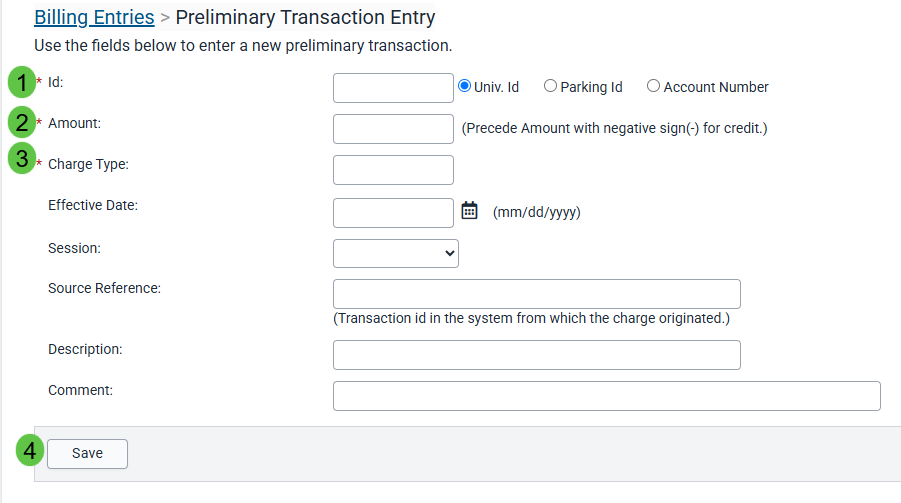
Billing Entry File Upload
This function allows a user to upload multiple billing transactions at once, utilizing a template to provide data in a format compatible with upload to MAUI.
Please Note:
- The file must be saved as .csv or .txt
- The header row should not be changed
- If using University ID, format the ID column to keep leading zeros
- Format the Charge Type column to keep leading zeros if needed
- Must include at least ID, Charge Type, and Amount
Billing Entry File Instructions
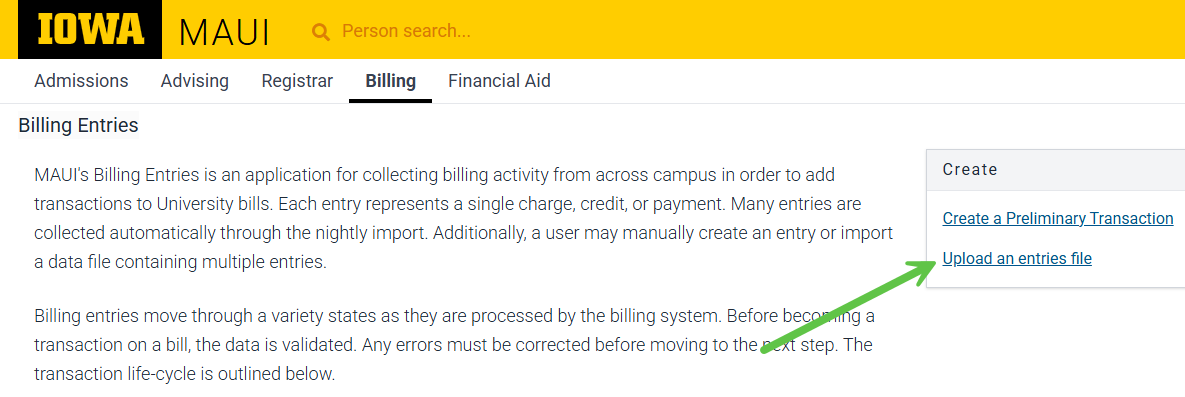
On the Billing tab, go to Billing Entries
Select "Upload an entries file"
Download the template to create the billing entries file in the appropriate format

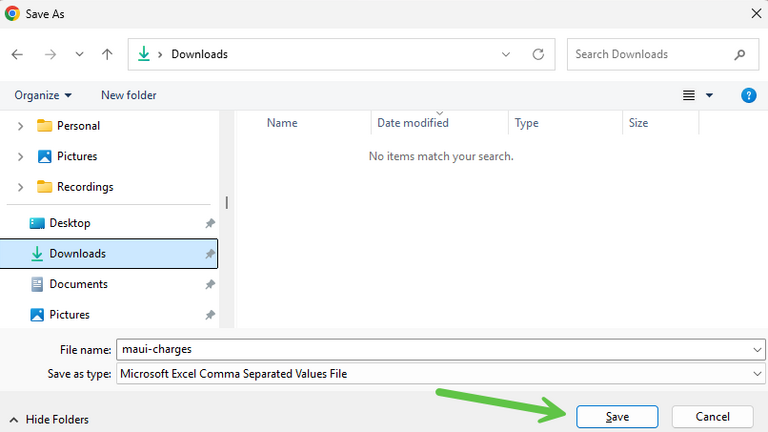
Open the template from your downloads and read instructions on the template before deleting Rows 2-22
File Formatting Requirements
- File must be a comma-separated file (.csv or .txt).
- File must have a header row.
- The first line in this document contains the official column names.
- Column names are case sensitive.
- 3 columns are required - one of the 3 possible 'id' formats, chargeType, and amount. Other columns are optional.
- Use official column names if possible. Some alternate column names are accepted.
- Columns do not have to be in any specific order.
Enter data following template specifications and save as .csv or .txt file
File Upload Column Descriptions
- File can contain one or more of these 'id' columns, but must contain at least one of these 'id' columns:
- id: University ID
- parkingId: Id from the University parking system
- accountNbr: MAUI billing account number
- ChargeType: MAUI Billing system's charge type identifier (5 numeric digits required).
- Amount: Dollar amount (maximum amount = xxxxxxxxx.xx-). If negative, sign can be on left or the right. (examples: xxxxx.xx, -xx.xx or xxx,xxx.x-).
- Date: Effective date for the charge (acceptable formats: mmddyyyy, ccyymmdd, mm/dd/ccyy, mm/dd/yy).
- Description: Description of the transaction (maximum 50 characters).
- SourceReference: Identifier from the originating system; Recommended to include for assistance with trouble-shooting; Contact University Billing for use rules.
- Session: Academic session the charge applies to; Required for certain Charge Types.
- Comment: Extra details about the charge; does not transfer to bill.
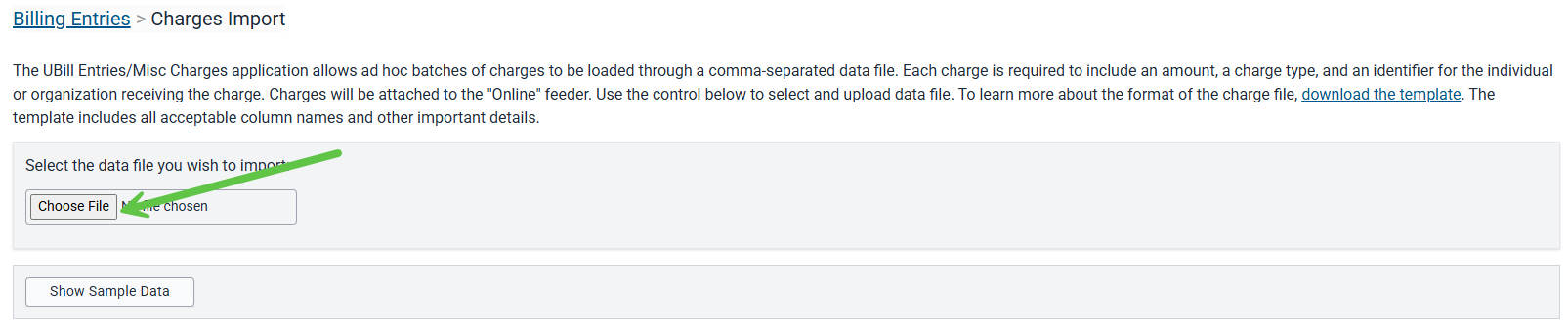
In MAUI select "Choose file", browse to your saved file, then select "Show Sample Data"
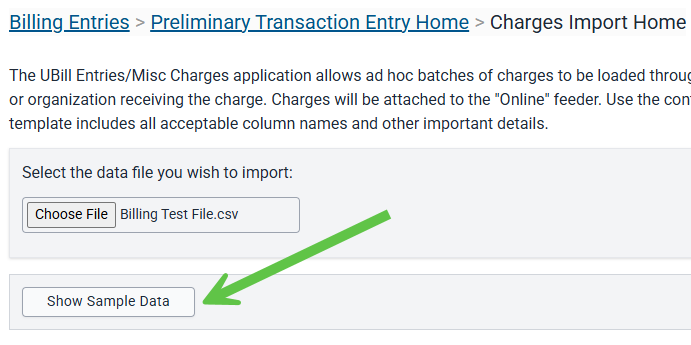
Select "Validate Data"
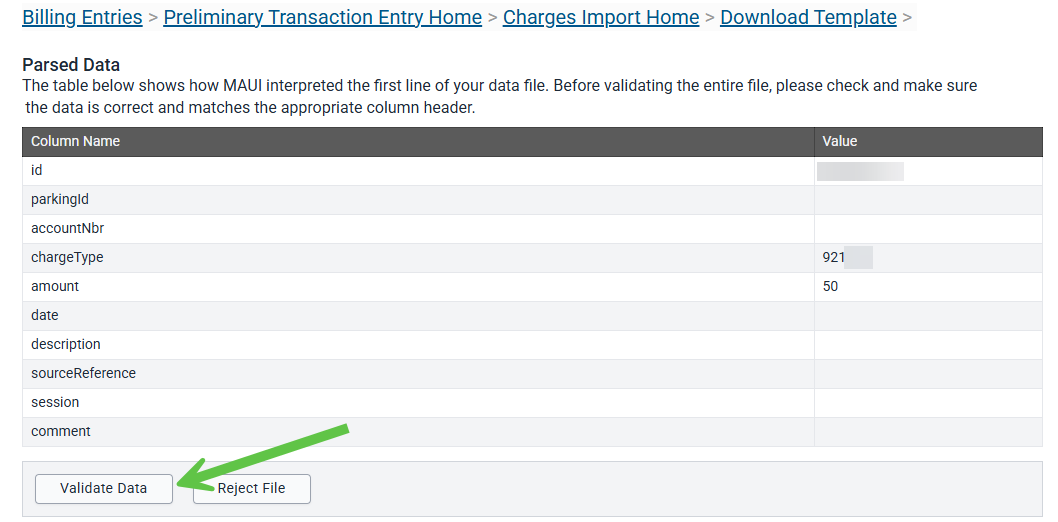
If information is successfully validated select "Import File"
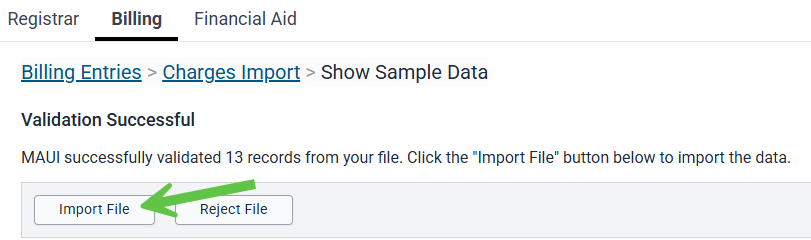
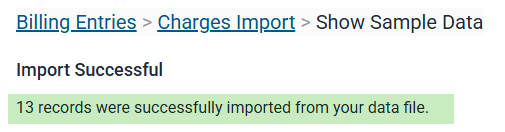
Message displays showing number of successfully imported records
If validation is not successful: review and correct errors, select "Import File", re-validate file data
Additional Help with Billing Transaction Entry