Important Restriction and Seat Reservation Terminology
Understanding the following information will aid your use of the Restrictions and Seat Reservations Report.
Restriction Definition
A restriction uses a definable piece or pieces of a student's record to limit the type of student enrolling in a section. For example, a Restricted to Majors restriction would allow only a student majoring in the academic unit offering the course.
A more detailed overview of restriction information is available.
Seat Reservation Definition
A seat reservation holds a set number of seats within a course section for a specific population of students. Seat reservations are based on a restriction, which can be separate from the overall section restriction.
After placement, any/all seat reservation update requests must be processed by Admissions or Reg-MAUI-Support.
Replication: Do Restrictions and Seat Reservations Replicate?
Does Replicate
- Restrictions replicate from like-session to like-session. For example, if a restriction was placed on a spring 2026 section prior to replication, it will be present in the replicated section in your spring 2027 planner.
- Restrictions are placed by the department
Does Not Replicate
- Seat Reservations do not replicate and must be requested for each semester you wish them to be utilized. Seat Reservations are requested via a workflow form.
Open Date and Release Date
Open Date
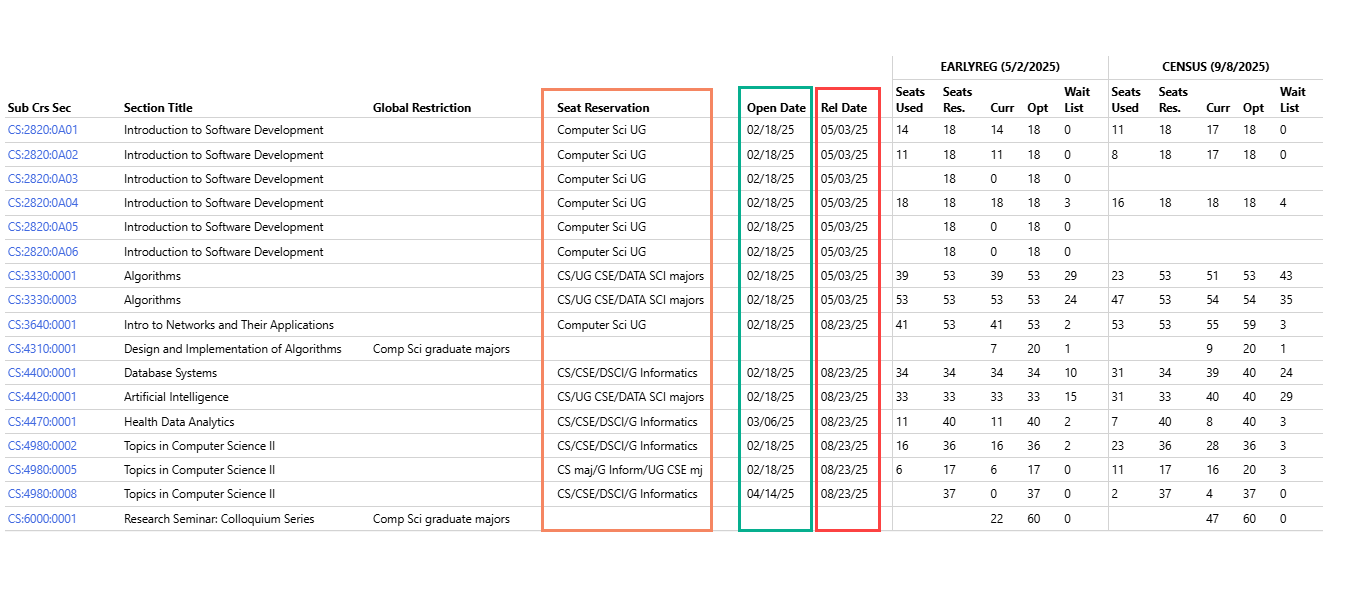
The Open Date is the first date at which a student could enroll in a course using a seat reservation. We typically open seat reservations prior to early registration so students can see them represented in MyUI. They cannot be used until a student's registration day and time occurs.
Release Date
The Release Date is the date on which any remaining seats that were not used in a seat reservation are returned to the pool of available seats in a course section. Seats release at 12:01 a.m. on the date provided when seat reservations are requested.
Seats Reserved and Seats Used
Seats Reserved
For each seat reservation placed, the number of seats reserved is listed in the report. For sections using multiple seat reservations, or using the same seat reservation but with differing open and release dates, the seats reserved count will be listed as requested for each individual seat reservation.
Seats Used
The number of seats taken (enrolled in) by students who meet the seat reservation is listed in this column.
Snapshots
The report provides side-by-side seat reservation and enrollment information by using three possible snapshots. A snapshot is the time at which the information is pulled from MAUI to use in the report.
Snapshot Types
Early Registration (EARLYREG)
The early registration date used for the report is the last day of early registration. Information present in MAUI on the last day of early registration will display.
Census
The report shows the information present in MAUI on the Census date for the session/semester. Census information is pulled from MAUI on the 10th day of the spring and fall semesters.
Daily: a daily view of seat reservation and enrollment information. This view is provided if and when there is not an Early Registration or a Census date available.
Example: if you are viewing the report for fall 2026 and it is not yet the last day of early registration, the daily snapshot will be used to show data.
Report Filters and Generating the Report
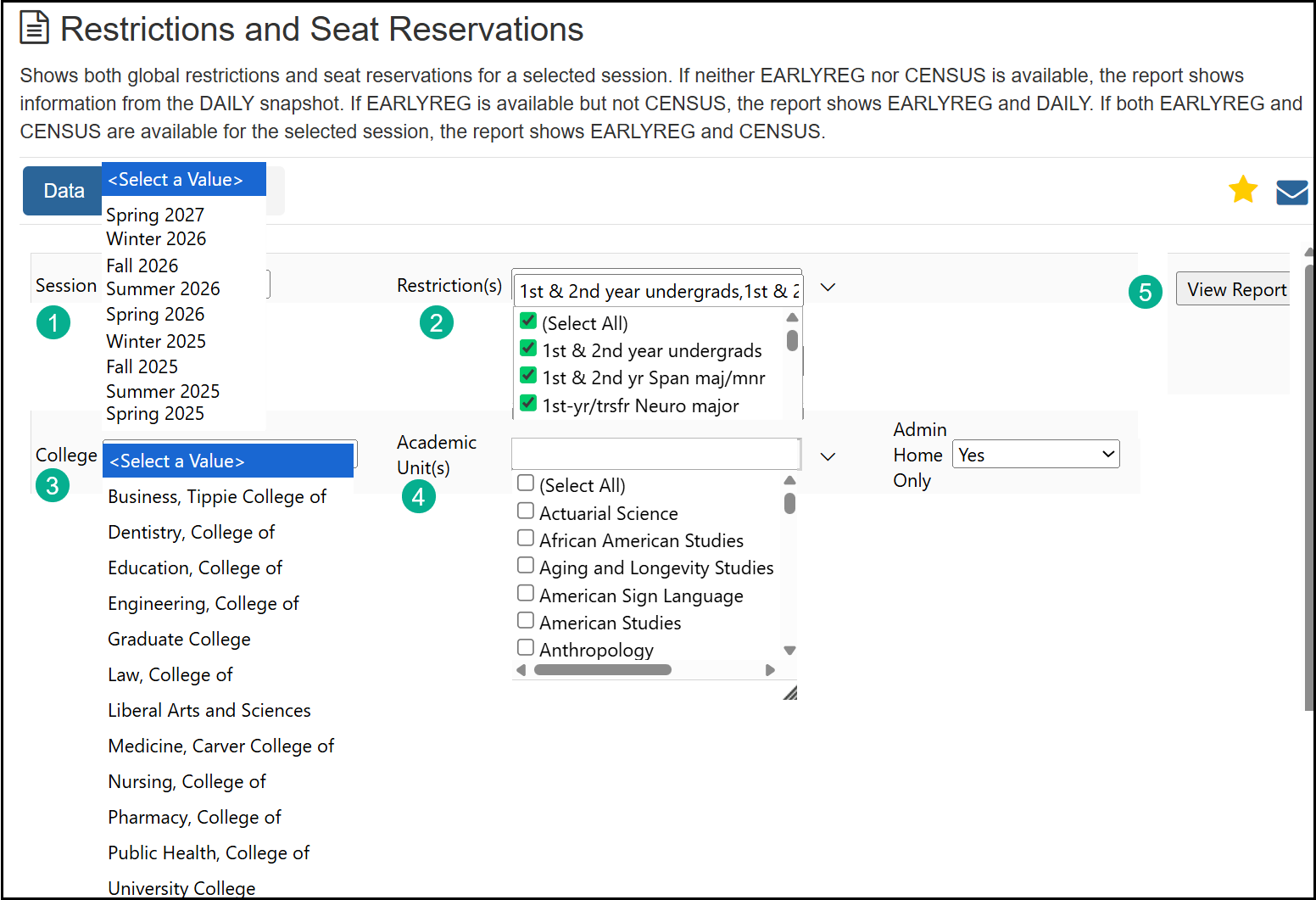
The report utilizes several filters which allow the user to tailor the information returned when running the report. Selections for the following filters must be chosen in order to successfully generate results.
- Session - one session is chosen. Report information can be pulled for sessions up to one year prior to the current session. For example, if running the report during the spring 2026 semester, spring 2025 is the last session which can be viewed.
- Restriction(s) - One or more restrictions can be chosen using the restriction filter. The short description of the restriction is used. This is consistent with the restriction name shown when selecting a restriction within a course section, as well as what is provided by the department when requesting seat reservations.
- College - One college can be selected when generating the report. Tippie Professional Program information is accessed by selecting Tippie College of Business.
- Academic Unit(s) - The possible academic units the user can select is determined by the selection made for the College filter. One or more academic units can be selected.
- Run the report by selecting the View Report button at the right of the screen. Please Note: A broad search by college utilizing many restrictions and seat reservations may result in the report taking several minutes to generate results.
Understanding the Report Data
The report will only display course sections for which global restrictions, seat reservations, or a combination of both are present. If, for example, a seat reservation is not placed on a section until after early registration, the early registration snapshot seat reservation columns will be blank.
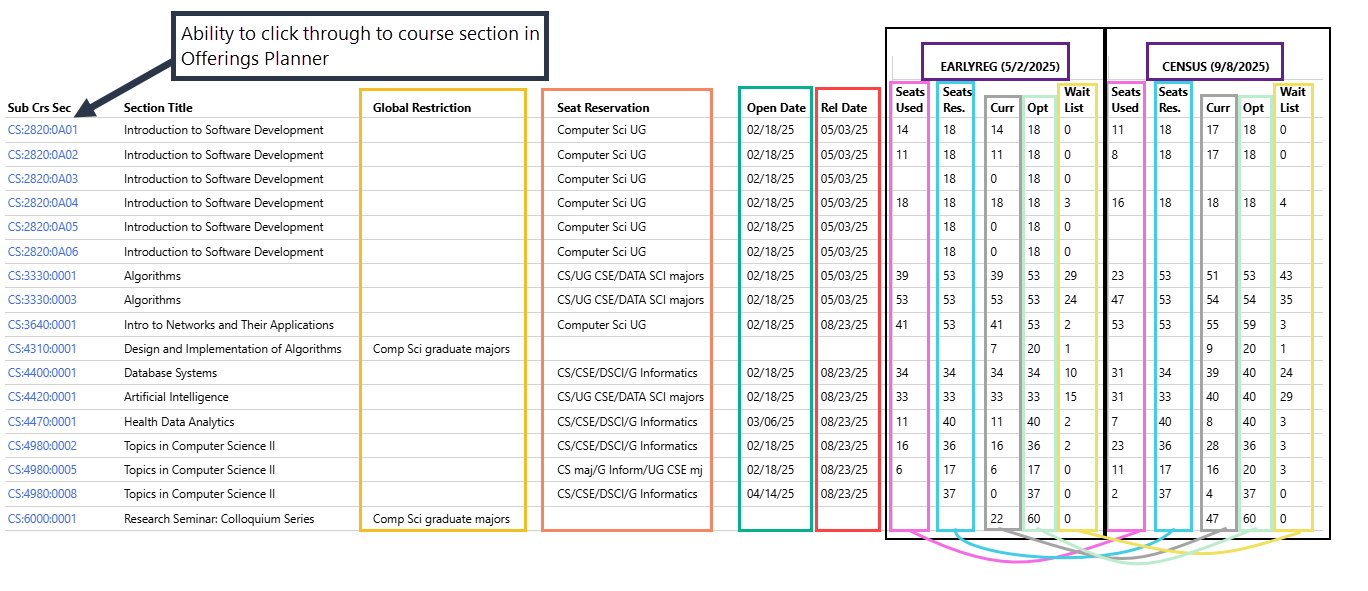
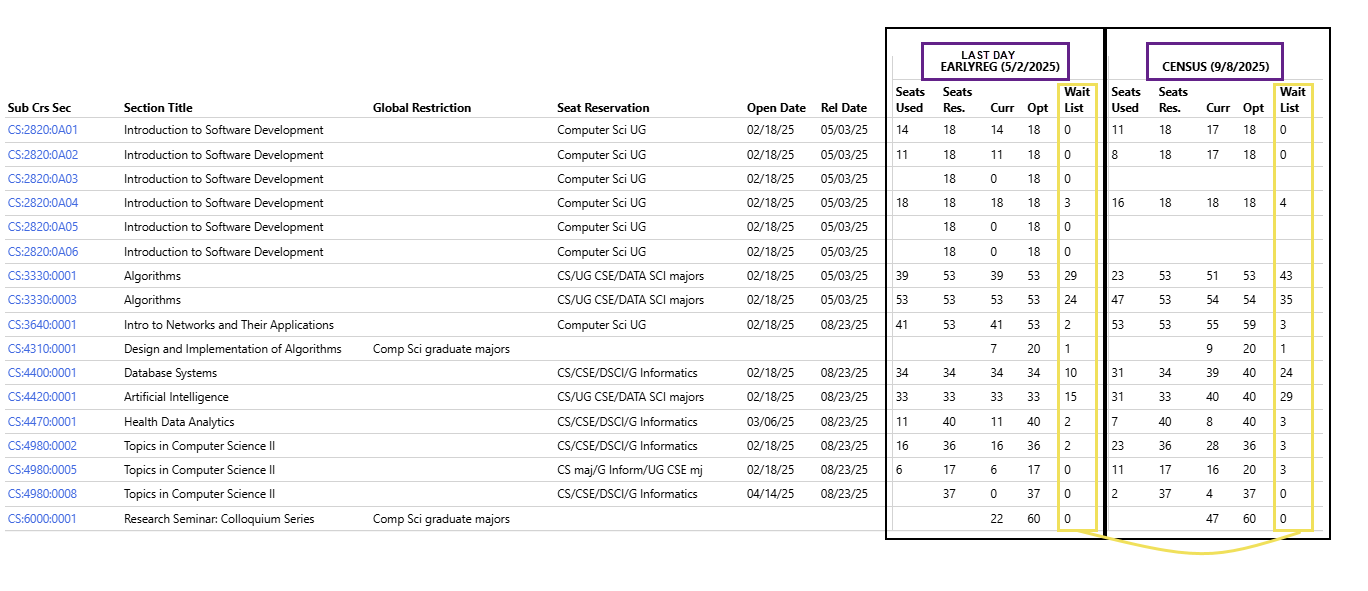
Here is an example of a report generated for the Computer Science Academic Unit. We will break down the individual report components below.
Viewing Restriction Information
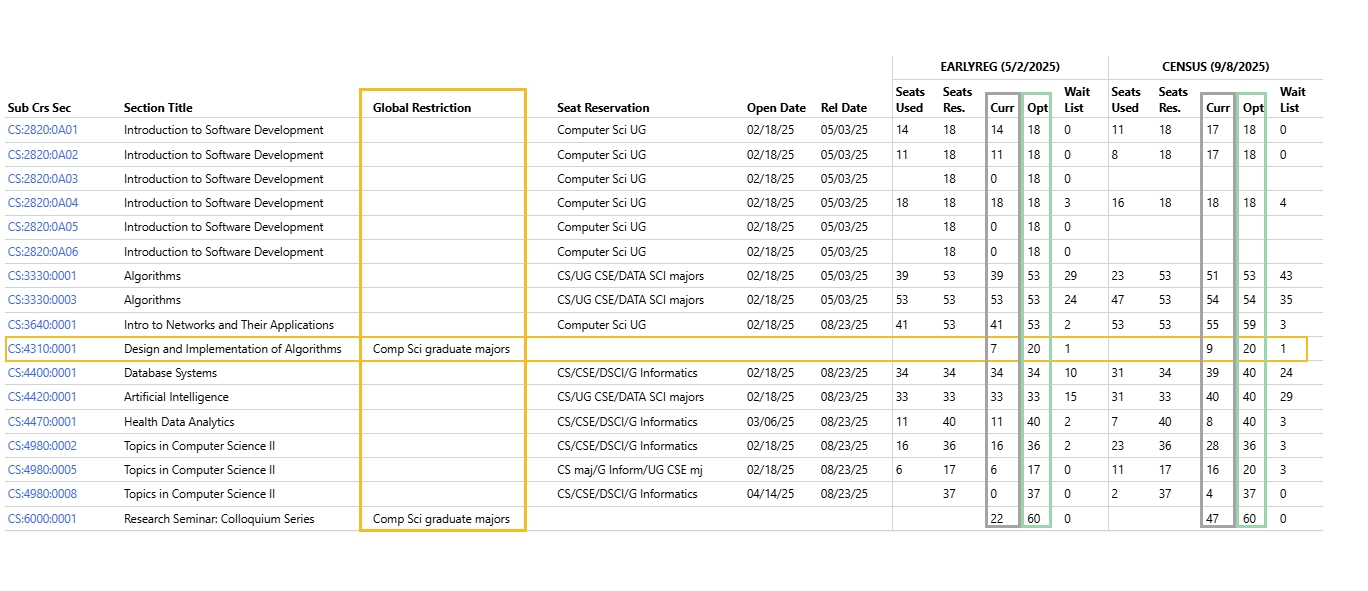
Global Restrictions, when placed on sections, will display in the 3rd column of the report. Because global restrictions impact the entire section there will not be any open/release dates or seats used/seats reserved. Current enrollment, optimum enrollment and waitlist information will display if present.
Report Layout - Snapshots
If early registration and census have already occurred for the session viewed, the "EARLYREG" and "CENSUS" snapshot data will display.
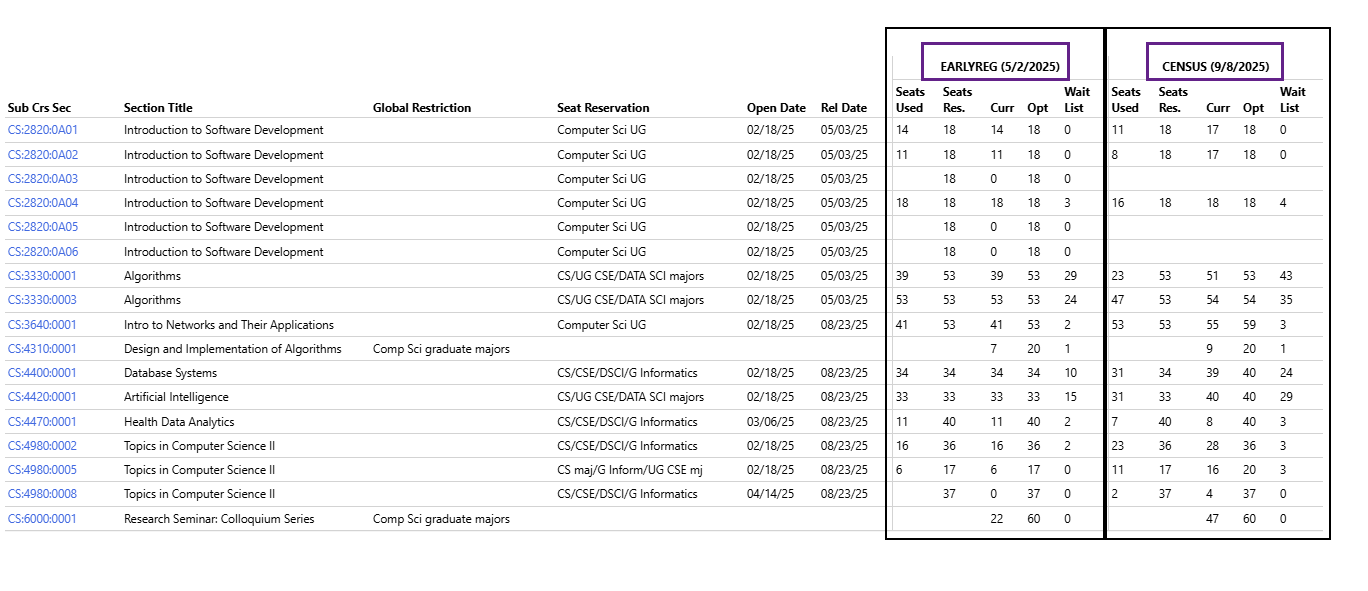
If early registration has occurred but the census date has not been reached, the "DAILY" snapshot will be included with the "EARLYREG" snapshot. Daily will show day-old information pulled from the data warehouse.
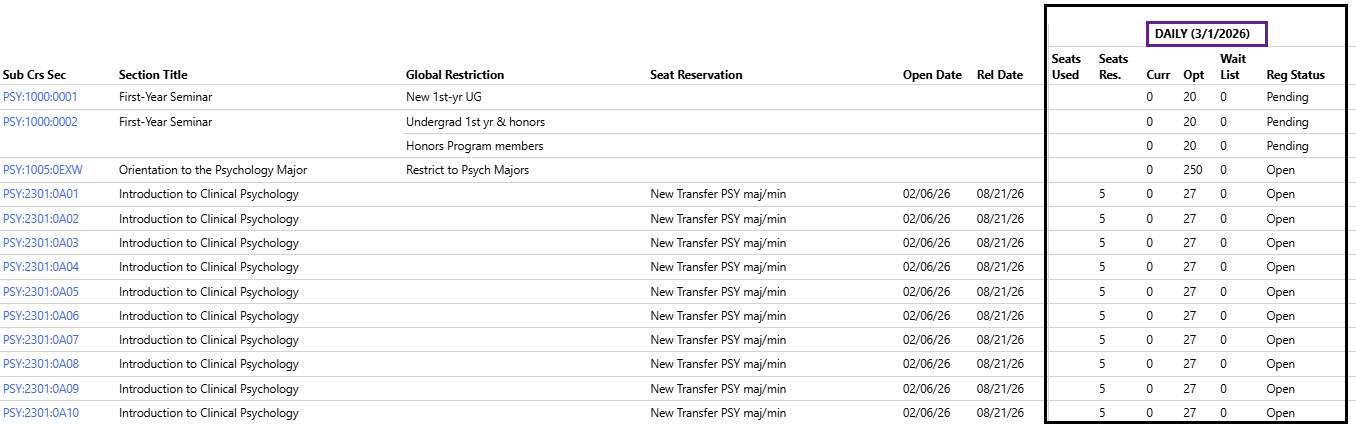
If neither early registration or census have occurred, "DAILY" will be the only snapshot displayed until the other snapshot dates are reached.
Open Date and Release Date
Open and release dates for every seat reservation are listed. As a reminder, while the example shows the seats opening on February 18, the reserved seats cannot be taken until a student's registration day/time. We typically use the date sections can be viewed on MyUI as the open date so the reserved seats are represented. Seats release at 12:01 a.m. on the release date listed.
Seats Used and Seats Res. (Reserved)
For each report row showing a seat reservation, seats used and seats reserved are listed in the first and second columns within each snapshot.
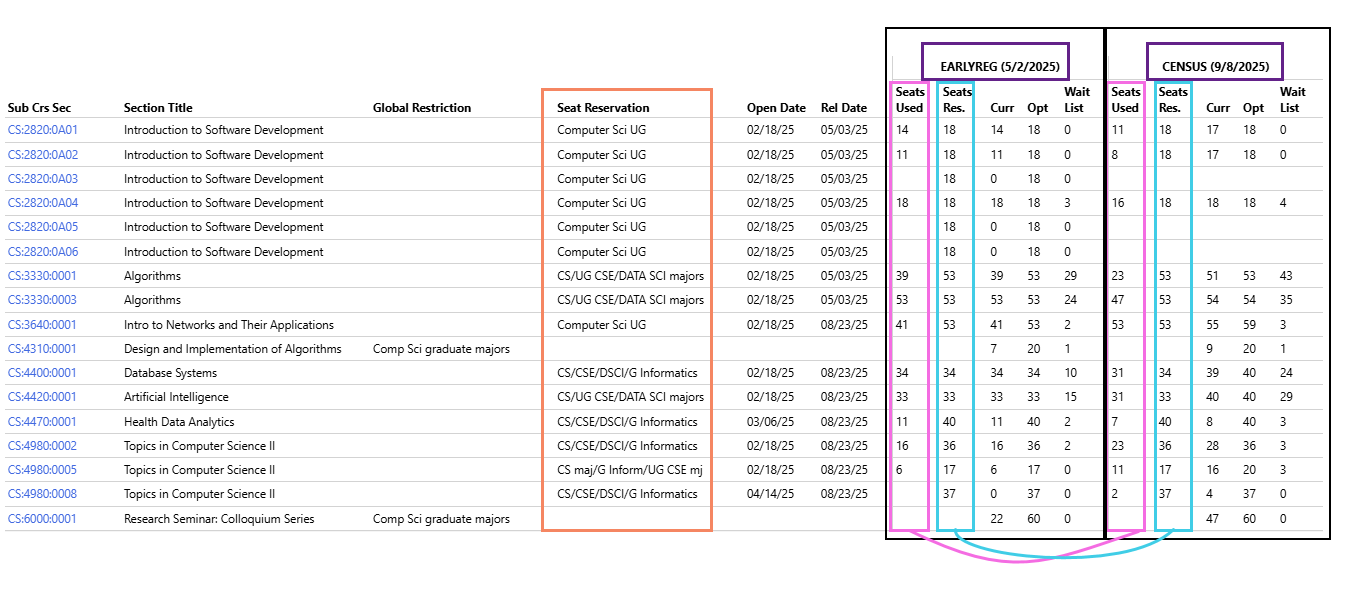
If a Seats Used cell for a row is blank, none of the seats have been used as of that snapshot time.

If both the Seats Used and Seats Reserved cells are blank at Census, the section has been cancelled.

Curr (Current Enrollment) and Opt (Optimum Enrollment)
Within each snapshot, Current Enrollment is in the third column with Optimum Enrollment in the fourth.
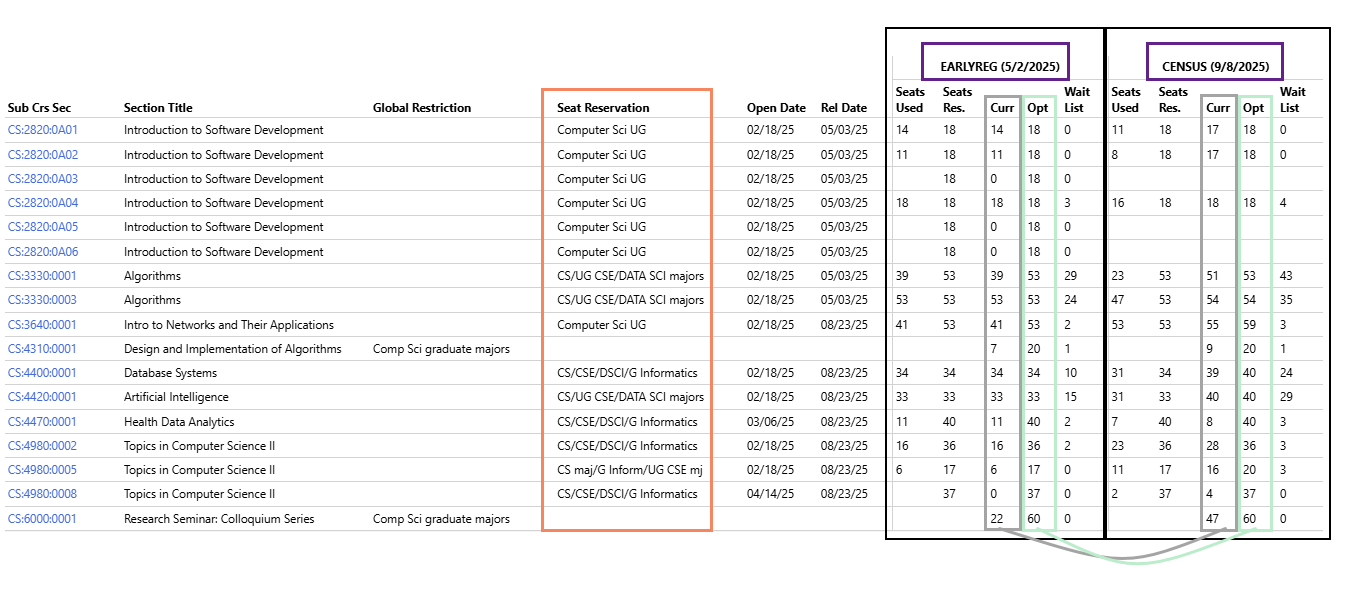
If there is no enrollment at the time of a snapshot the enrollment count will be zero.

If the current and optimum enrollments at Census are blank, the section has been cancelled.

Waitlist
The last column for each snapshot is Waitlist, which shows the number of unique students on the waitlist for a section at the time each snapshot is pulled. If a section is cancelled, the waitlist cell will be blank. If the section does not use a waitlist or if there are no students on the waitlist, the count will be zero.
Report Download Help
Downloading the report will provide the most flexibility when reviewing data.
The report can be downloaded by clicking on the floppy disk icon.

Additional Help with Restriction and Seat Reservation Report